Pointing Ontario One Call at Dig Window
You do not set up any forwarding in your own mailbox. One Call sends its emails to your Dig Window intake address; Dig Window reads them and passes a copy to your locates mailbox, exactly as before. Six short steps, once.
Step 1. Find your two addresses
In the office app open the Company tab. The box at the top, Your One Call intake, shows:
- Your intake address, yourcompany@digwindow.net. Copy it exactly. It never changes.
- Your locates mailbox: the address that gets a copy of every One Call email. It is the one you gave at checkout. If it is wrong, or your locates go to a shared mailbox such as locates@yourcompany.ca, press Change now.
Step 2. Verify the locates mailbox
In that mailbox, find the email from Cloudflare (noreply@notify.cloudflare.com) with the subject [Action required] Verify your Email Routing address (check junk) and click Verify email address in it. Cloudflare then shows a page that mentions an Email Routing page; ignore it, there is nothing more to do there. Back in the box, press Check. It turns ready, and a test email from Dig Window lands in that mailbox a moment later. You can delete it.
Step 3. Open your Contractor ID at One Call
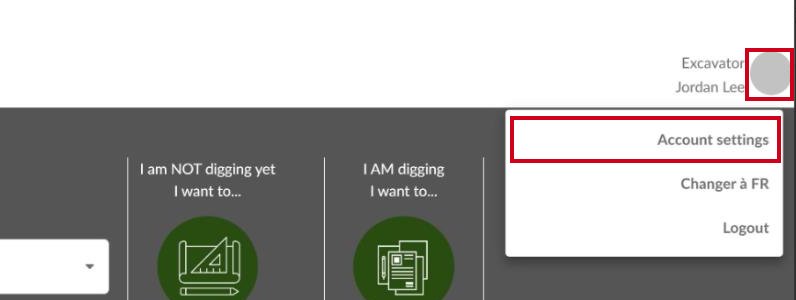
Sign in to the Ontario One Call web portal with your usual login. Top right, click your name, then Account settings.
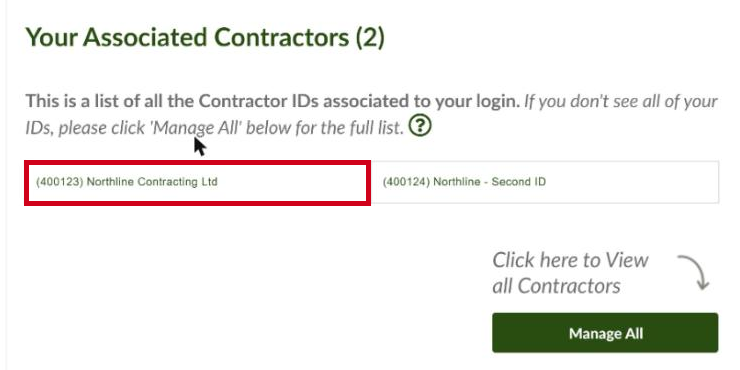
Under Your Associated Contractors, click your Contractor ID.
Step 4. Change the email and save
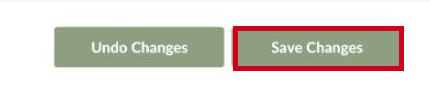
Under Main Contact, replace the Email with your intake address, then Save Changes at the bottom of the page.
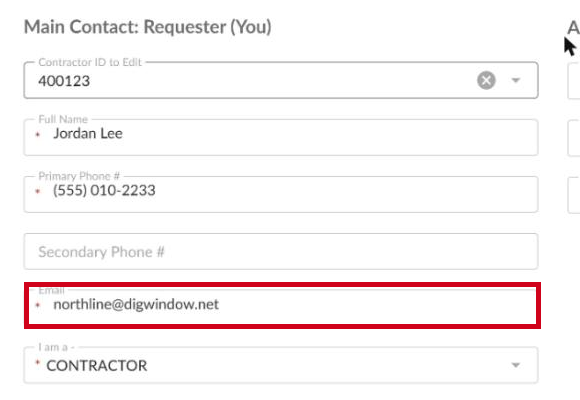
Two things not to change: your Login Email (that is only how you sign in to the portal), and the contact on individual tickets. Every new request copies its contact from the Contractor ID.
Step 5. Check it worked
In the portal, start a new Single Address Request and look at the contact email it fills in on the first step. It should be your intake address. Then cancel the request: nothing is filed until the last step, and cancelling costs nothing. From here on, every confirmation and utility response appears on your tracker within a minute, and the copy lands in your locates mailbox as before, still from One Call.
Step 6. The first time you relocate an older ticket
A relocate, remark, correction or revalidation is filed as an update of the original request, and the portal copies the contact email from that original ticket, not from your Contractor ID. So the first time you update a ticket filed before Step 4, overwrite the Email on Step 1 of the update form with your intake address. Every later update of that ticket keeps it. Tickets filed after Step 4 are already right.
Tickets you already have open
Tickets filed before Step 4 keep the old contact email. Their confirmations and utility responses keep going to your existing mailbox only, not to Dig Window. To track those on Dig Window, your coordinator adds them on the tracker and uploads the documents to each ticket.
Utility responses that arrive only as paper or by fax can be dragged into the ticket from the tracker. Nothing is lost if a utility does not email.
Emergency locates are handled by your team on site. Dig Window does not time the two-hour emergency response; it tracks an emergency ticket like any other once its emails or documents reach Dig Window.
Next: The Chrome extension