Help · For the crew
For the crew
One page for the people in the truck. Your office has added you; this is how to get in and what you are looking at.
Getting in
- Open field.digwindow.com in Safari (iPhone) or Chrome (Android), not inside a text or Teams message. Type your work email, then the 8-digit code from the email it sends you. No password, ever.
- The first time, you are asked to acknowledge that the locate documents and the marks on the ground govern, not the app. That is the rule on site, and every package says the same.
- Add it to the home screen (Share, then Add to Home Screen on iPhone; the menu, then Add to Home screen on Android) and it opens like an app.
One login, one device. A shared tablet works, but if that person later signs in on a phone, the tablet is signed out.
The map
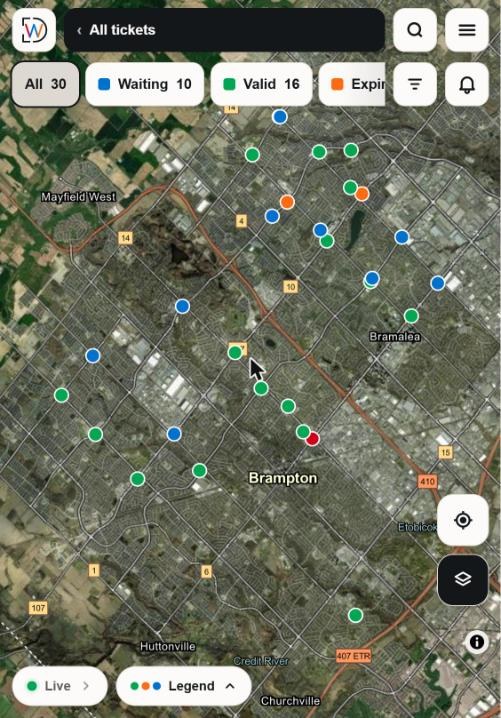
- The list of projects opens first. Pick your job and the map shows its locates. All tickets shows everything your office lets you see.
- The colours: green, every utility has responded (Valid); orange, responded but Expiring soon; red outline, Expired; blue, still Waiting on a utility; black and yellow, a Stop order, do not dig there until the office lifts it; hatched, Third party first: someone else has to do something on site before you dig, such as a site meet with the utility or a hand expose, and the office will say what; grey, Done. The Legend button at the bottom says the same, and the chips along the top filter by status.
- Not green? Blue means a utility has not responded; orange or red means the locate is running out or has run out. Talk to the office before you break ground there; the app cannot answer that for you, whatever the colour.
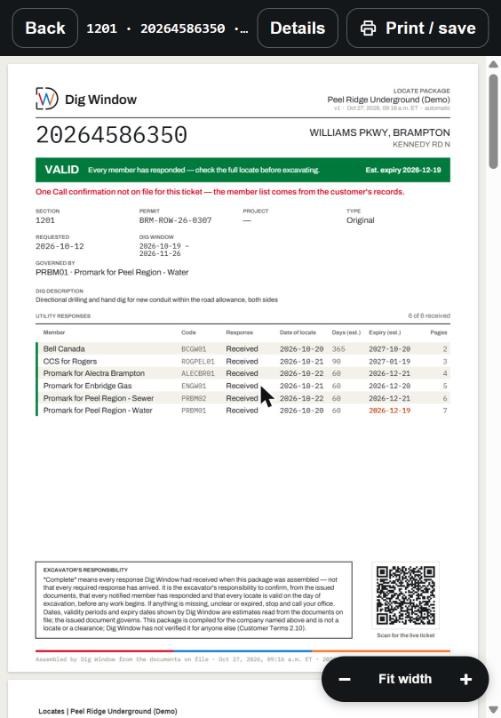
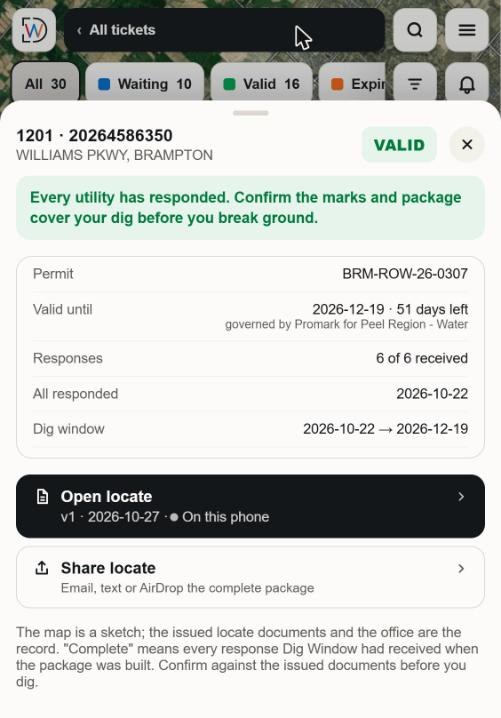
- Tap a zone, or the pin where no zone has been drawn, and the locate package opens: the one PDF with every locate sheet and sketch, cover page first. Details at the top shows the ticket: which utilities responded, until when, the dig window, and Open locate and Share locate (email, text or AirDrop the package).
- Search (the magnifier) takes an address or a ticket number. The target button centres the map on where you are standing.
- Print / save on the ticket sends the package to a printer or saves it on the phone.
Good to know
- No signal: the locates your office keeps on phones (usually all of them) and their packages are stored from the last time the phone had signal, so they still open in the trench. What you see is as of that moment; a stop order or a new response that arrived since is not on the phone until it has signal again.
- Mark work complete, when the office has turned it on for crews, tells the office the dig at that zone is done.
- Notifications for your own locates (a package ready, a stop order) turn on from the menu: This phone, then Notifications.
- A blue banner that says a newer version is live means Dig Window has updated; reload when you are ready.
Dig Window never says a locate is safe to dig. It shows whether every utility has responded, and until when. The locate sheets in the package and the marks on the ground govern, every time.
Questions about a locate go to your office, not to Dig Window.